RW Elephant gives you the option to record payments for any Invoice. Whether that’s cash you collected or checks you are about to deposit, these are solely a record of the transaction.
The same can be the case with credit cards. If you used a platform such as PayPal, Square, or a terminal on your counter to process the credit card, you could record the transaction for each Invoice.
Within RW, we also have the option for Integrated Payment Processing. If you opt to use this service, instead of just recording the payment you are actually processing the credit card and recording in a single step.
So, instead of typing the number into your PayPal website, using the terminal on your counter, etc. you are actually doing that within RW Elephant.
Navigate to the “Payments” tab within the Order.
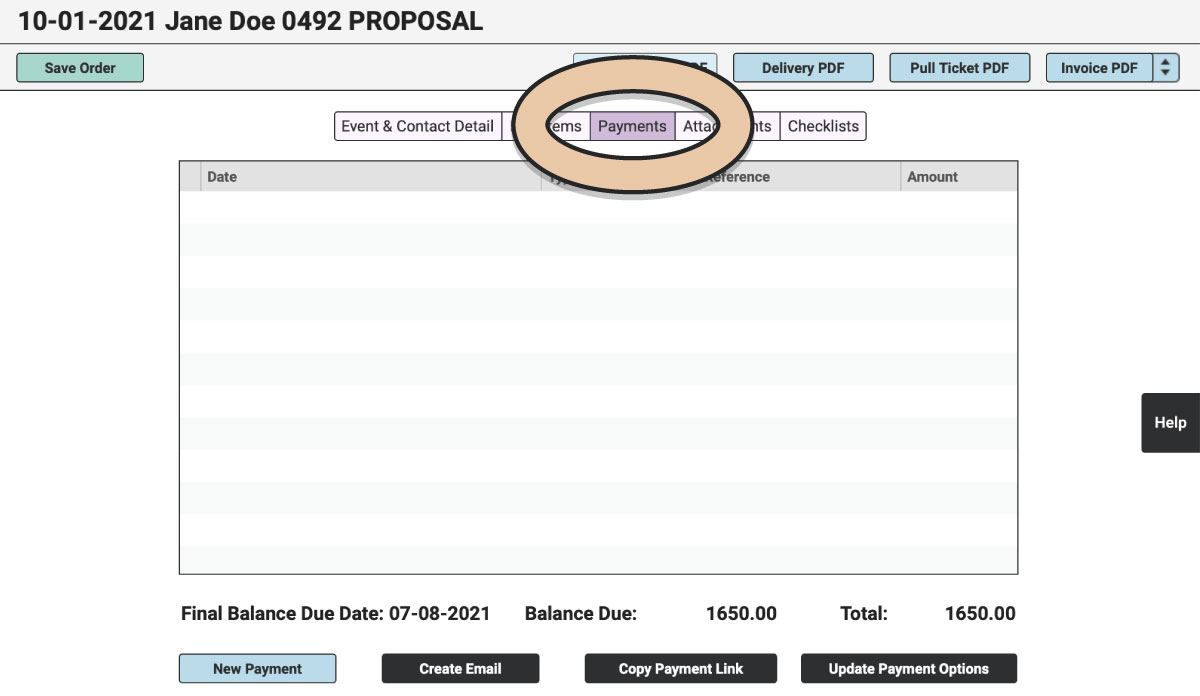
Click the green “Edit Order” button.
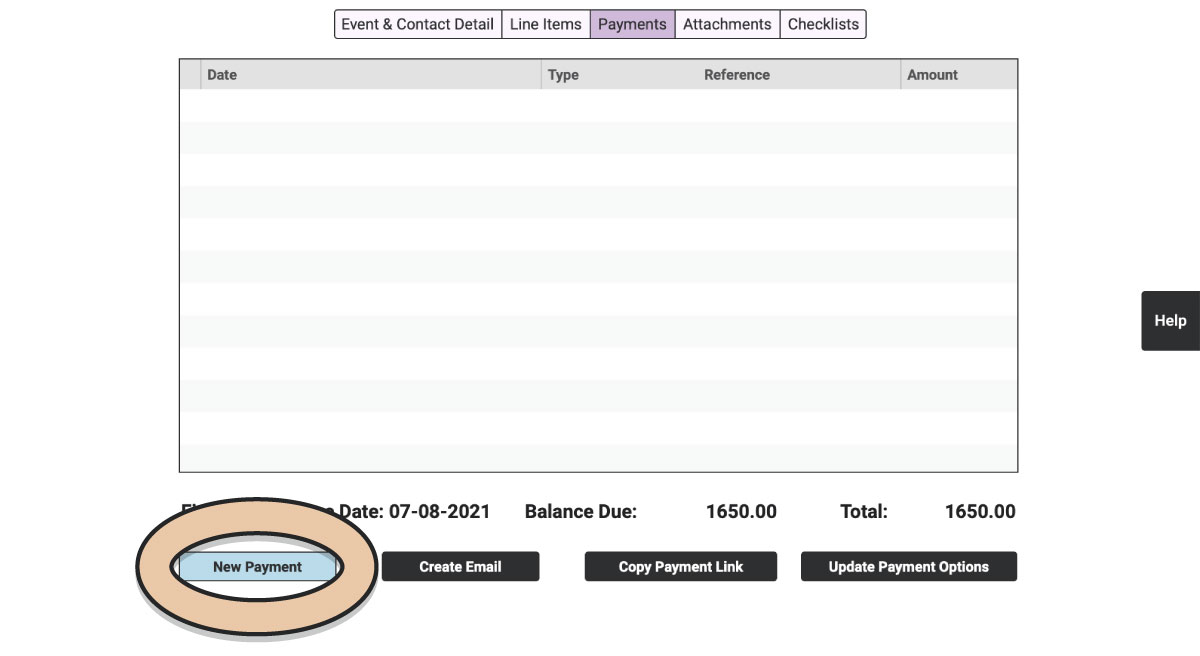
Select “New Payment” at the bottom of the page.
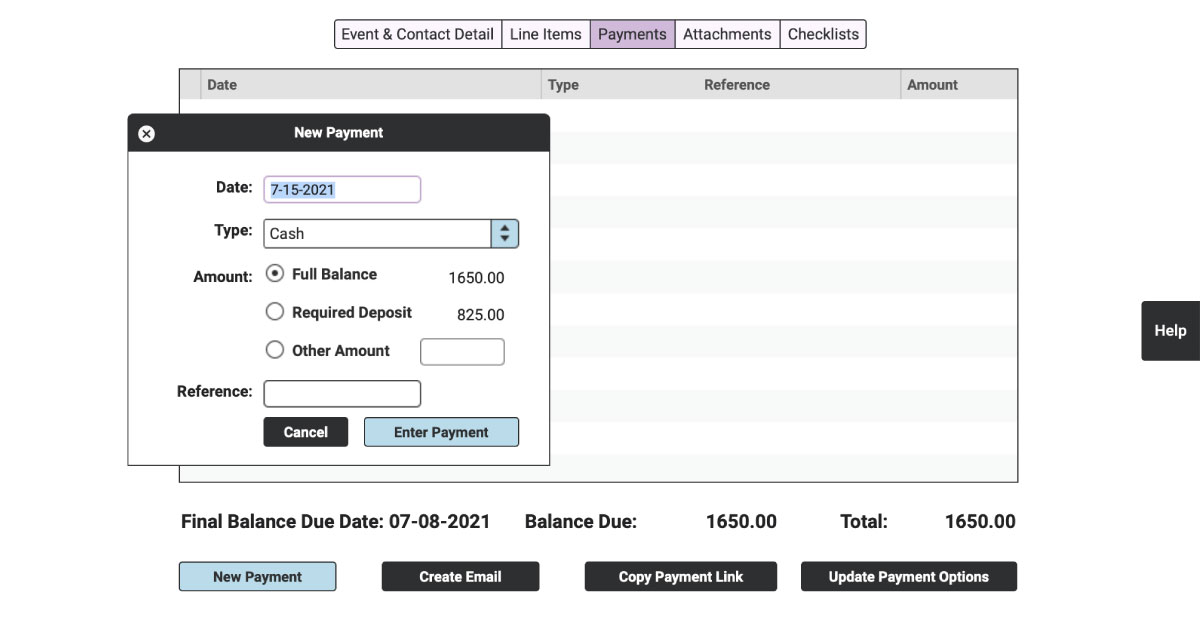
A window will pop up to record all the transaction information.
Difference between Recording and Processing
The most significant difference between recording and processing is that processing requires you to enter a credit card or select a card used in a previous transaction within this payment window. Recording a payment does not.
In the “Type” dropdown, you can choose either “Credit” or “Credit (Record Only).”
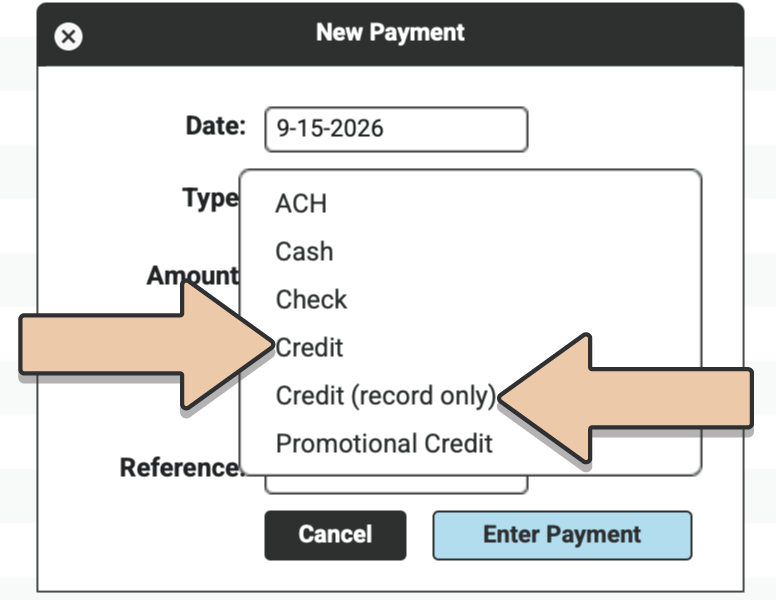
If you are not set up with Integrated Payment Processing, these two options will do the same thing: record a credit payment.
However, if you have opted for Integrated Payment Processing, you’ll need to understand the difference between these two Payment Types.
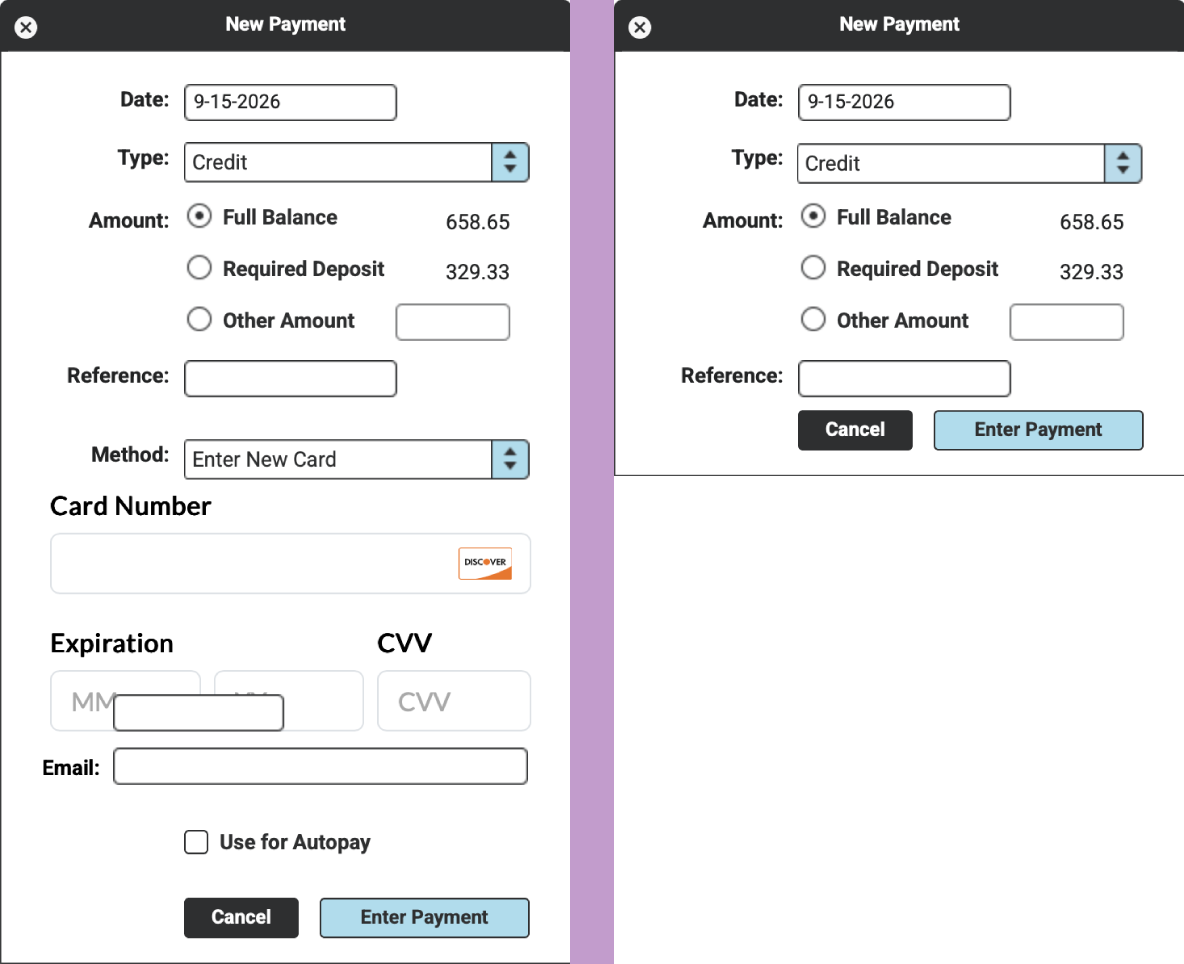
Processing a Credit Card Payment
Choose “Credit” as the Payment Type.
In the “Credit Card” field, the default drop-down option will be “Enter New Card.”
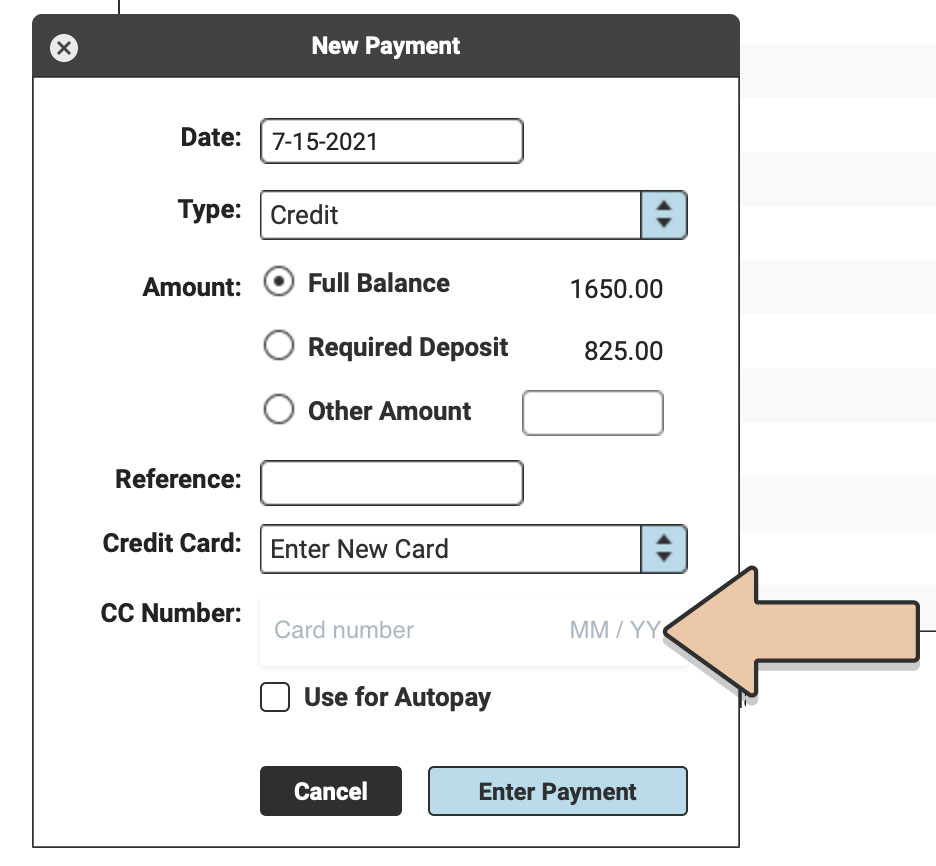
If this is the first time you are processing a card for this Invoice, “Enter New Card” will be the only option. However, if this is the second or third payment on this Invoice, you can select a previously-used credit card from the drop-down menu.
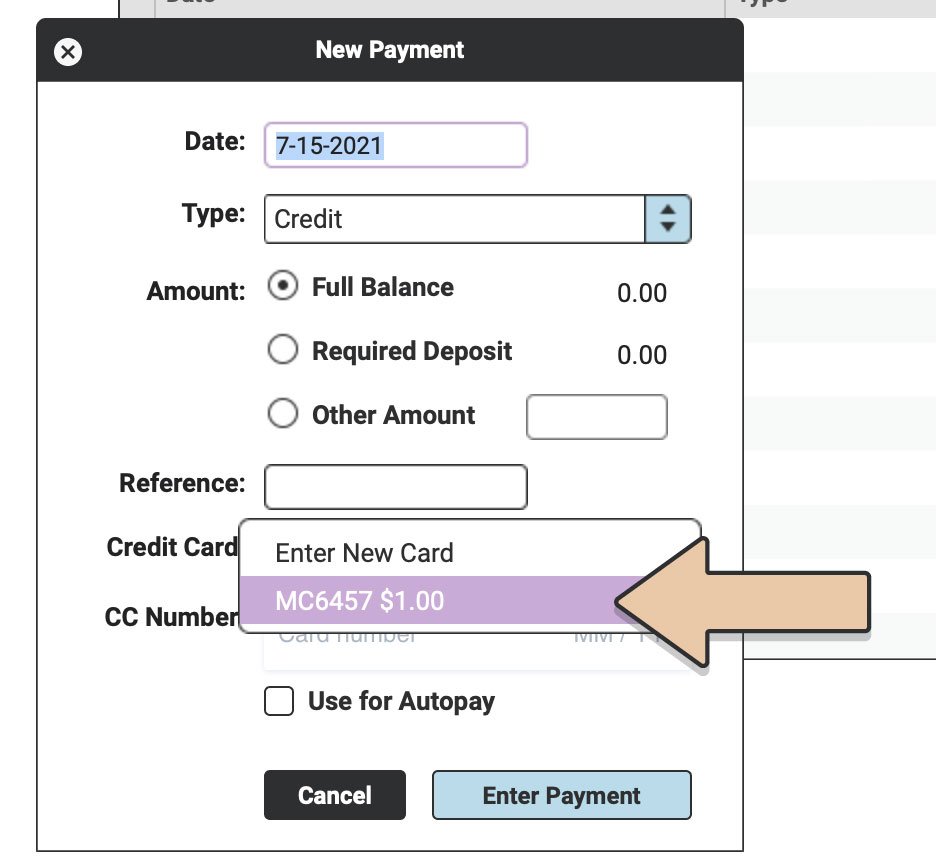
Once you fill in the credit card information and click “Enter Payment,” the credit card will be charged, and the transaction will be recorded within RW at the exact same time. Easy as 1-2-3!
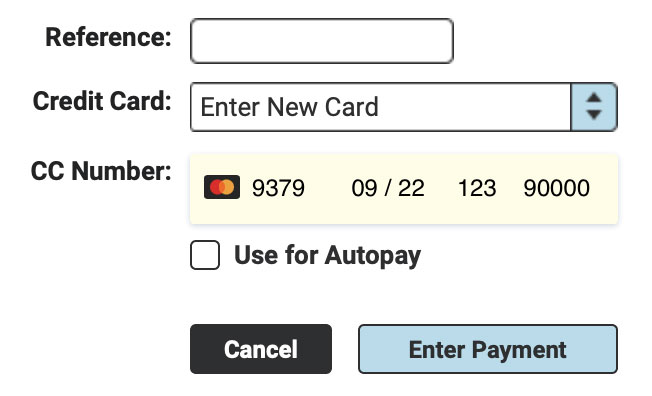
Recording a Credit Card Payment
If you processed a credit card outside of RW Elephant and need to record the transaction, select “Credit (Record Only)” from the drop-down menu. Fill out the Date, the Amount, and add a Reference.
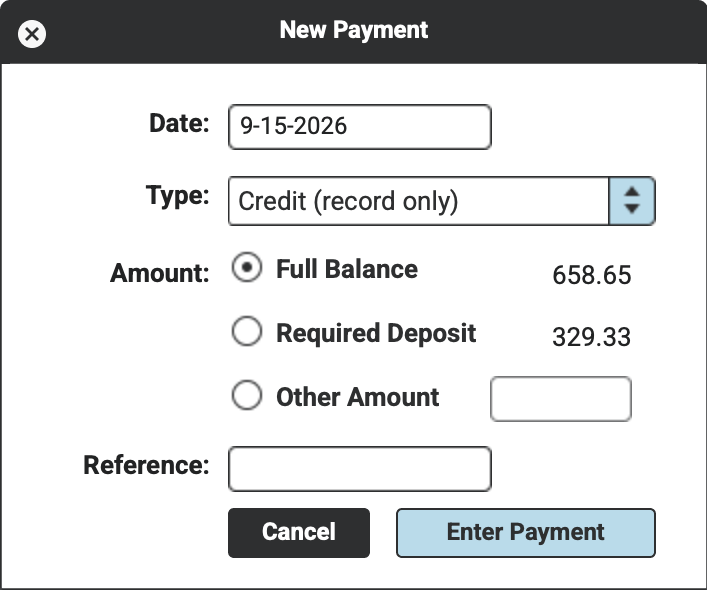
Click “Enter Payment.”
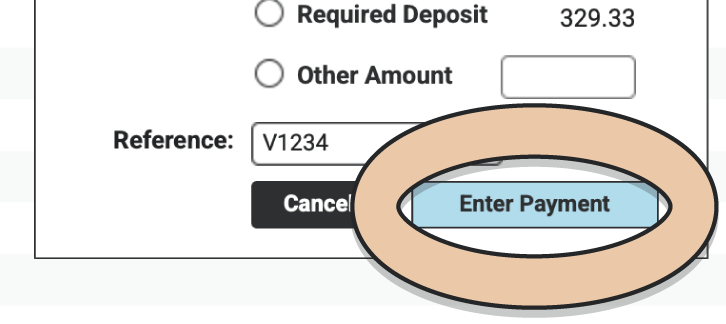
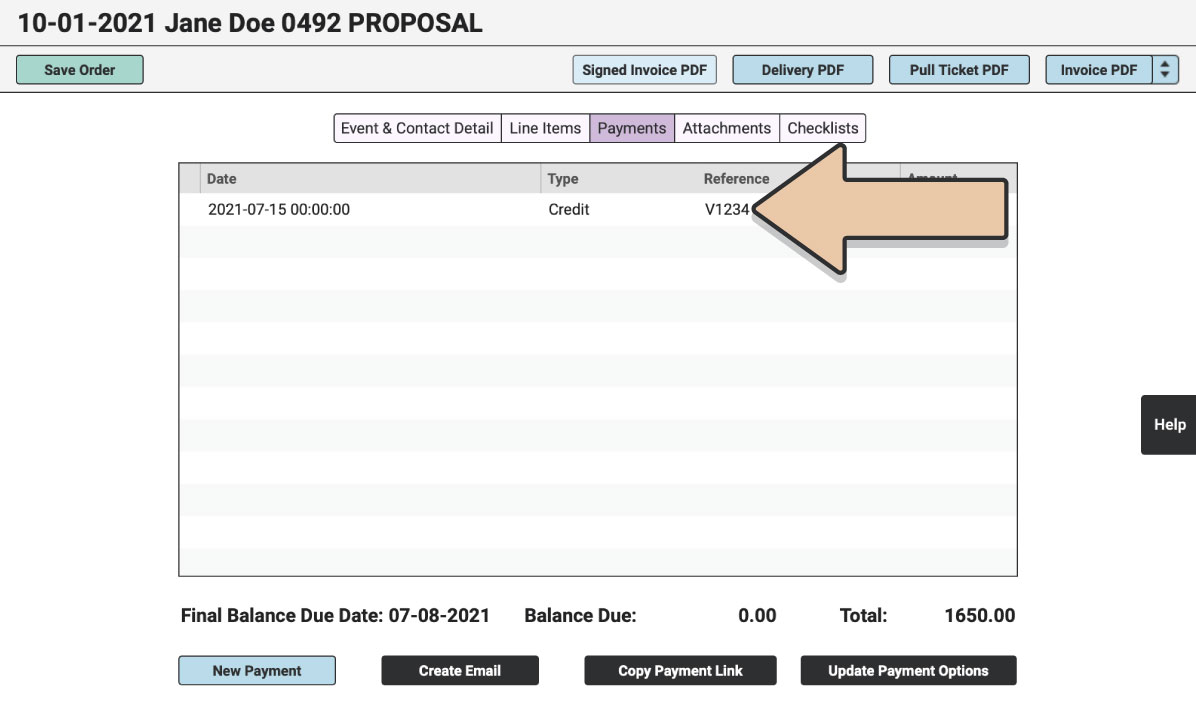
Note: This payment will now be recorded on the Order but won’t be charged through RW Pay (or Stripe). Payments that are processed through RW Pay or Stripe within RW Elephant will have an auto-populated note in the Reference Field with the card type and the last 4 digits (e.g., V0003).
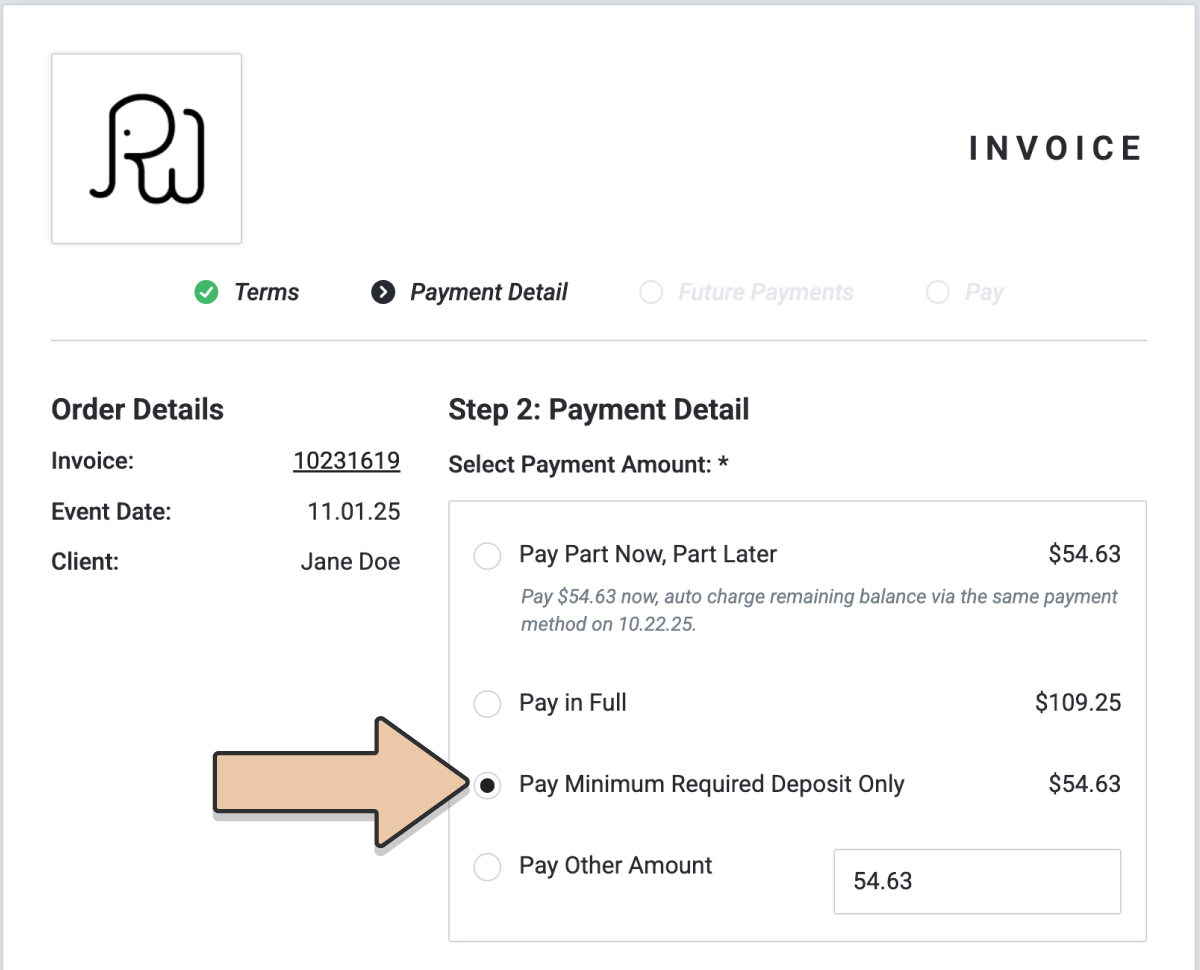
When manually processing a Credit Card, you can process an “Other Amount” less than the “Required Deposit,” as long as it is $0.50 USD or more. However, if Customers are paying through the Online Payment Page, they must pay the minimum Required Deposit or more.
Also, see Autopay.