You’ll be able to do just that by clicking the “Create Email” button in the Payments tab of a Wishlist Order. Doing so will open a new email in your chosen mail client. You can then either edit the message or click send right away and sit back until your Customer says “This is amazing! I want it all!”
To customize the default text of this email, navigate to the “Account” icon in the upper right corner of your browser window.
In the left column, select “Email Templates.”
Choose the “Wishlist Link” tab.
Click the green “Edit” button at the top of your browser window.
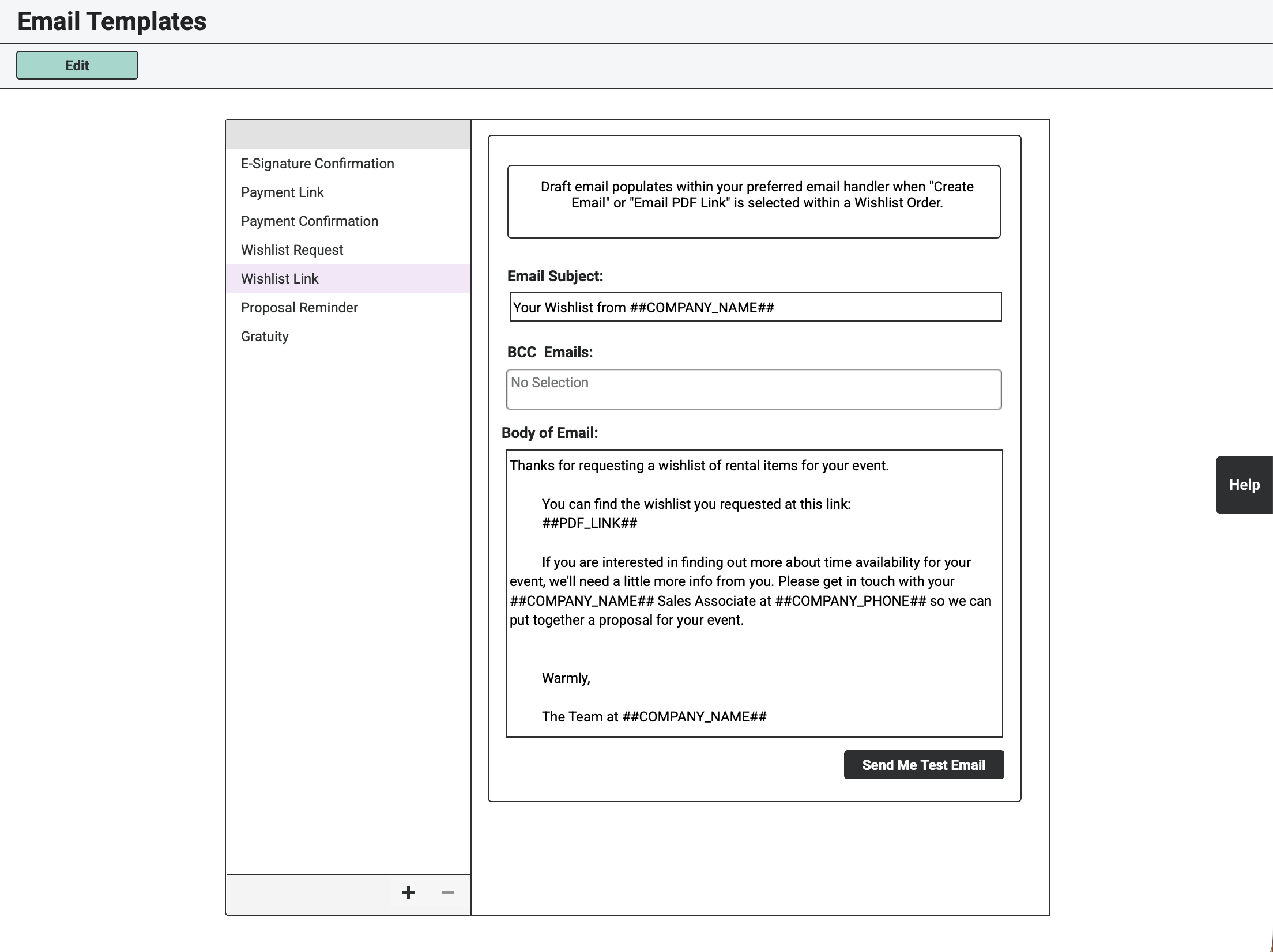
Modify the default text in any way you’d like but keep in mind that the Reference Tags (##COMPANY_NAME##, ##EVENT_DATE##, etc.) are meant to save you from a life of cutting-and-pasting. Even if you rearrange them or add more verbiage, you may want to include these tags.
Use the BCC (Blind Carbon Copy) field to add email addresses you’d like to receive a copy of the Wishlist Link Email. Email addresses in the BCC field will always receive this email when it is sent out to Customers.
For instance, if you utilize a CRM alongside RW, this is a great place to enter your CRM’s unique BCC email. Customers won’t see that the email was also sent to this email address.
Be sure to separate email addresses in this field with a comma if you’d like to add more than one.
Here is a Guide for the supported Reference Tags:
Your Company Name: ##COMPANY_NAME##
Event Date: ##EVENT_DATE##
Wishlist Number: ##DISPLAY_INVOICE_ID##
Client Name (First and Last): ##CLIENT##
Client First Name: ##CLIENT_FIRST##
Client Last Name: ##CLIENT_LAST##
Link to Wishlist PDF: ##PDF_LINK##
Be sure to include all relevant tags, especially the ##PDF_LINK## so your Customers can see the Wishlist PDF you’ve created for their inquiry.
If you haven’t already, be sure to add some Wishlist Terms to make sure your Customers know that a Wishlist does not confirm Item availability
When you’ve finished crafting your email body, be sure to click the green “Save” button at the top of the browser window.
Also see: