To manage your own User settings or those of your other Users, navigate to the “Users” icon in the upper right corner of the browser window.

Edit a User
To change your own settings, choose yourself from the left column.
Click the green “Edit User” button at the top of the browser window to make changes.
Edit Name, Username, Email, and User Role. Be sure to click the green “Save User” button to save your changes.
If you are an Admin, you can also make changes to other Users’ settings.
Add a User
To add a new User, click on the “+” button above the left column.
Add the Name and Email Address for the new User in the window that pops up. Then choose the level of permissions you’d like your new User to have in the “Role” menu.
Customize the invitation message the new User will receive. When you’re done, click the “Invite User” button.
The new User will receive an email invitation. Once they activate their account, they’ll be able to choose a Password and get started on their rental adventure along with you.
Archive a User
When an employee leaves your company, you can Archive their User to free up a slot in your User Limit while keeping the User’s data intact. If you’re not sure what your User Limit is, check the Plans page.
Select the User you want to Archive in the column on the left side of your browser window.
Right-click (or CONTROL + click) the User.
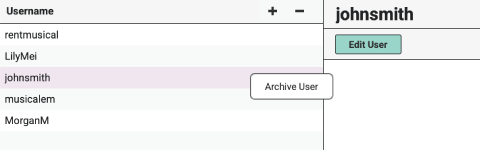
Choose “Archive User.”
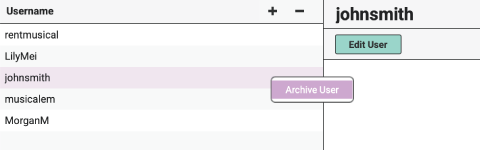
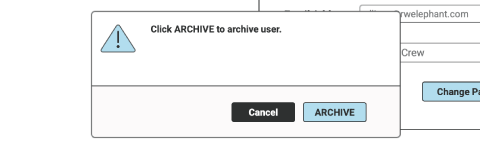
Click the blue “Archive” button.
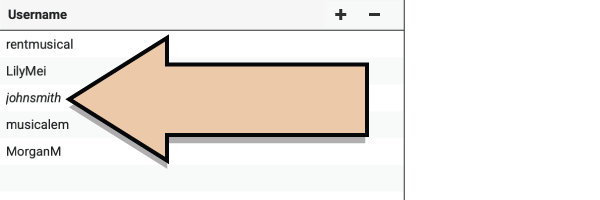
The Archived User will be listed in italics.
Unarchive a User
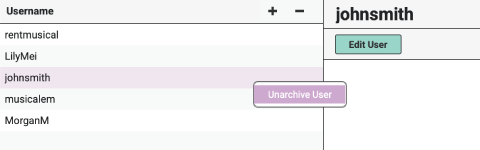
If you need to give an Archived User access to your Account again, right-click the User and choose “Unarchive User.”
Delete a User
If you created a User by accident, or need to delete a User that has never made changes to your RW Account, you can permanently delete the User.
Select the User in the left column.
Click on the “-” button above the left column.
In the pop-up confirm the action and select the blue “Delete” button.
Check out the User Permissions and our Adding New Users Tutorial.